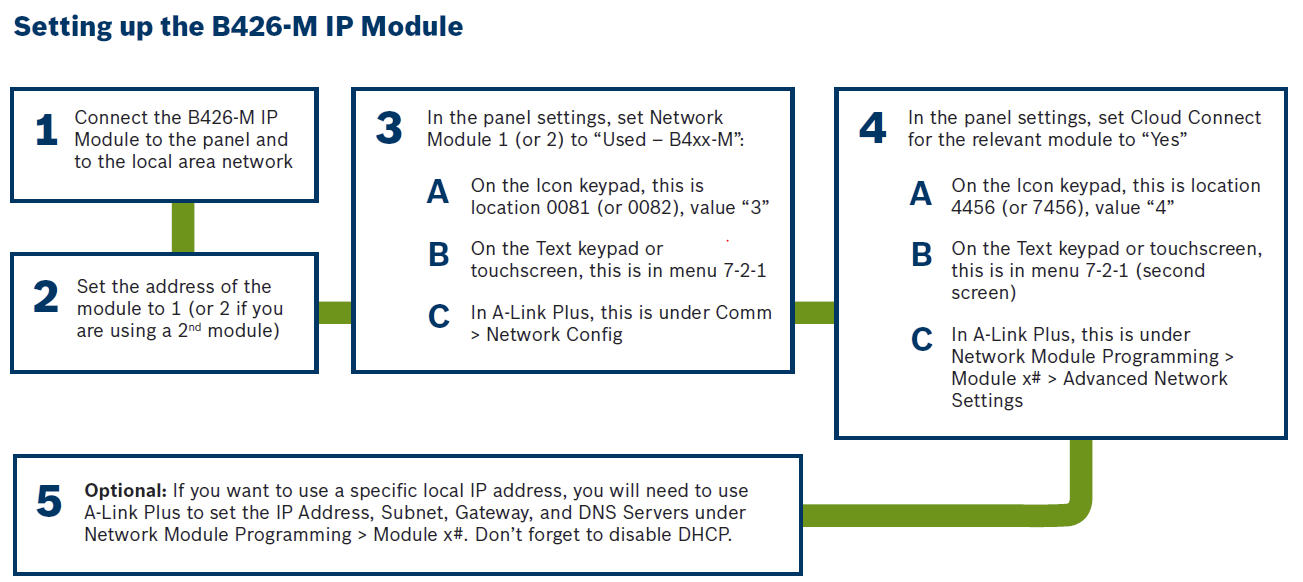
Notes for B426-M:
*Jumper should be on the Tamper pins below the ethernet port on the B426-M (you should not see the blue heartbeat light).
*You should see a orange and green 'link' LED's on the B426-M. Orange flashing and green solid.
As well as Location 0081 being a value of a '3' and 4456 a '4'. Check the following locations:
Loc 4146 should be a value of '00'
Loc 4147 should be a value of '01'.
Loc 4021 - If this has a value of '1' it means IPV6 is enabled. However, if it is a value of '0' it means IPV6 is disabled.
LAN Scan (V2.1.3) - Mastercode followed by 941 # will reboot module 1. Allow a minute before the IP Module restores.
Mastercode followed by 942 # will reboot module 2.
To check current FW version of the Solution 2000/3000 panel, enter installer code # then 999 # and a digit will appear. Press * to check the next digit, then * for the final digit of the FW version.
E.g. 1234 # 999 # '2 appears' I'd press * then I'll see a '1', then * again I'd see a value of 3. V2.1.3 would be the FW.
To check cloud status: Installer code 123 # (1 means module 1 and 2 means module 2).
-Solid number means that module is ONLINE to the cloud.
-Flashing number means that the module is OFFLINE to the cloud.
If you are having connection issues, or just in general, we recommend keeping firmware upgraded for the Solution 2000/3000 panel as well as the communication Modules to enhance not only the connectivity but to ensure compatibility.
Current FW version for Solution 2000/3000: V2.1.3.
Current FW version for B426-M: V3.13.208
Current FW version for B450-M: V3.13.206
(Check link below for the latest FW version files and upgrade if possible)
https://commerce.boschsecurity.com/au/en/Solution-2000-3000-Control-Panel/p/17607640587/
>Downloads
>Softwares
**If all above has been checked, and you're still having issues connecting it could be on the modem/switch side. Try a different port; If connecting to a switch, try connecting directly to a modem as a test**
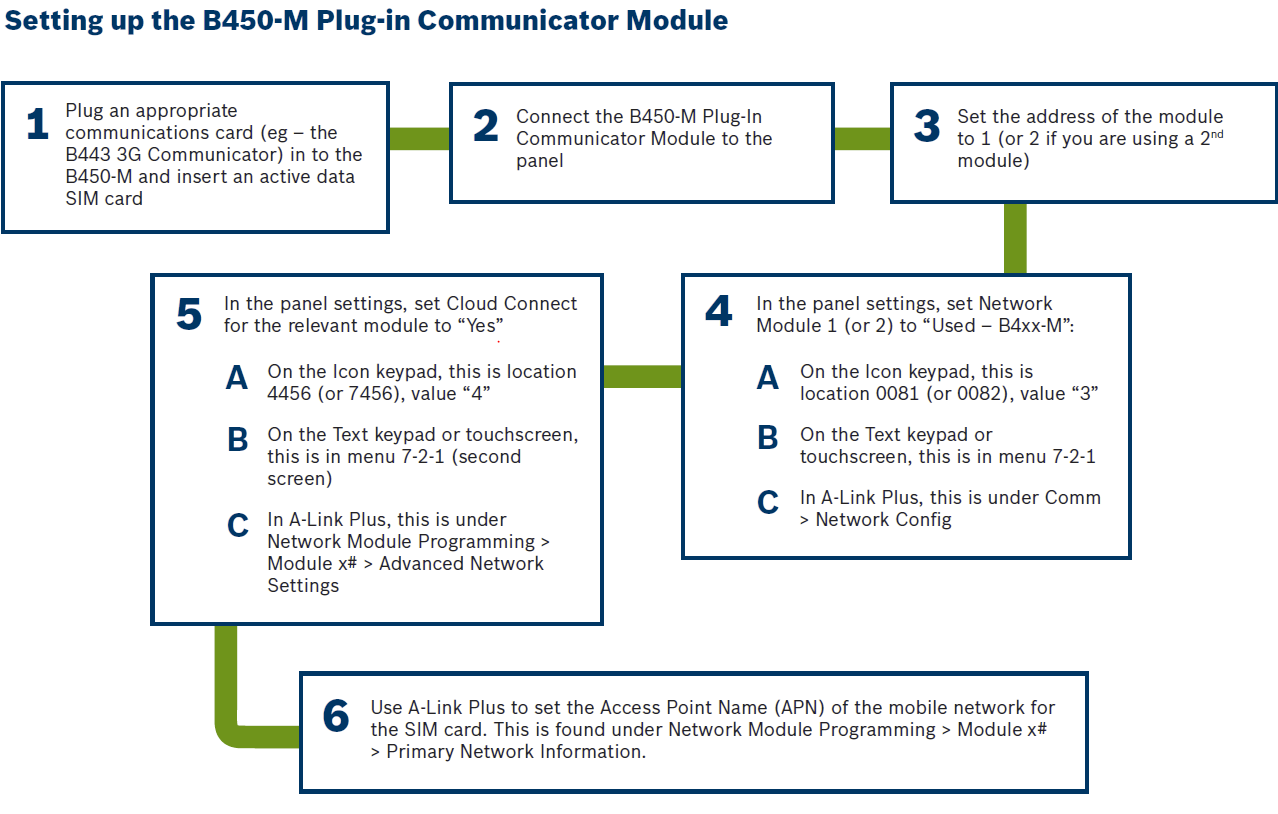
Notes for B450-M:
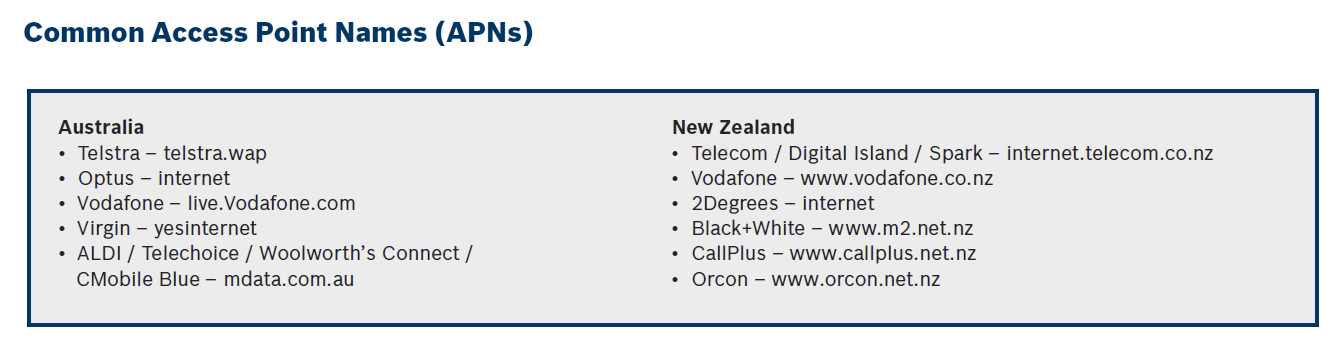
*To double check APN, put the sim card into the phone and go to 'Settings' > 'Network and internet' > 'Sims' >'Access point names' > APN.
Or try 'Settings' > 'Mobile' > 'Mobile data network' > APN.
Some Telstra APN's that used to be telstra.wap may be telstra.internet.
Please refer to attached PDF to help you set up the RSC+ app.
Was this article helpful?
That’s Great!
Thank you for your feedback
Sorry! We couldn't be helpful
Thank you for your feedback
Feedback sent
We appreciate your effort and will try to fix the article